 Your Photos Never Leave Your Device

HEIC to JPG Converter
Convert iPhone photos into JPG or JPEG files that open on any phone, PC, or website.
PrivateFiles stay on your device
Batch ConvertMany photos, one ZIP
Drop Your HEIC Photos Here.Tap to Add HEIC Photos
Choose FilesHEIC and HEIF files are supported. Select many photos at once.
You can also paste files with Ctrl+V or Cmd+V.
By converting, you confirm you have the right to use these photos and agree to our Terms of Use and Privacy Policy.
JPG and JPEG are the same format. Only the file extension is different.
Advanced Settings (Optional)
Photos can hide the date taken and the GPS location. Remove them before you share a photo online.
How to Convert HEIC to JPG
1
Add your photos
Drag and drop, click Choose Files, pick a whole folder, or paste with Ctrl+V or Cmd+V.
2
Pick your settings
Choose JPG or JPEG and a quality level. Open Advanced settings only to resize, hit a size limit, or rename.
3
Check the previews
Photos convert one after another. Each shows a preview and its new file size when it finishes.
4
Download
Save one photo, or click Download all (ZIP) to get every photo in one file.
Why Convert Here Instead of on an Upload Site?
Most online converters upload every photo to a server, process it there, and delete it later. This one converts in your browser, so nothing leaves your device. Photos can carry GPS coordinates and the exact time they were taken, so that matters.
|
Feature |
HEIC to JPG Now |
Many Upload-Based Converters |
|---|---|---|
|
Where Conversion Happens |
In your browser |
On a remote server |
|
Upload Wait |
None |
Depends on file size and connection |
|
Sign up or Account |
Not needed |
Often required for larger batches |
|
Exact File Size Target |
Yes, 100 KB to 2 MB |
Often not offered |
|
GPS and Date Removal |
On by default |
Often not offered |
|
Watermark |
Never |
Check before you convert |
Which HEIC to JPG Settings Should You Use? Pick Your Use Case
|
Audience |
Why They Convert from heic to jpg |
Settings to Try |
|---|---|---|
|
📱 iPhone and iPad users |
To use their photos on non-Apple devices and apps |
JPG with the default quality |
|
💻 Windows users |
HEIC files often will not open, edit, or upload |
JPG, original size |
|
📱 Android users |
To open .heic photos received from an iPhone |
JPG with the default quality |
|
📧 Email users |
JPG attachments open almost everywhere |
Resize Photos to 1280 px |
|
🌐 Website users |
Websites and forms often accept JPG or PNG, not HEIC |
JPEG if the form asks for .jpeg, or a size target |
|
🛍️ E-commerce sellers |
Product photos must be uploaded to Shopify, eBay, Etsy, and other marketplaces |
Resize to 1920 px, add a file name suffix, download as ZIP |
|
📄 Students and office workers |
Assignments, documents, and portals need a common image format |
Target File Size, then check your portal limit |
|
🎨 Designers and creators |
Photoshop, Canva, and other tools may not read HEIC |
JPG at 100% quality, or try our HEIC to PNG converter |
|
🖨️ Printing users |
Print shops and printers work best with JPG |
Original size, quality 100% |
Key Benefits of This HEIC to JPG Converter
1. Add Photos Your Way
Drag, Drop or Paste
Drop files on the box, click Choose Files, or paste with Ctrl+V or Cmd+V on a computer.
Whole Folders
On a computer, choose a Folder to add every HEIC photo inside it. The button is hidden on phones and tablets.
HEIC and HEIF
Both file types work. The tool skips other files and tells you how many.
Batch Convert
Add up to 50 photos at a time, up to 100 MB each.
2. Control the Output
Two Formats
JPG (.jpg) or JPEG (.jpeg). Need lossless PNG? Use our HEIC to PNG converter.
Quality Slider
Choose 50% to 100%. The default is 90%.
Resize Photos
Set the longest side to 800, 1280, 1920, 2560, or 3840 px, or type 100 to 10000 px. Photos get smaller, never larger. Original size is the default.
Size Target
Pick Under 100 KB, 200 KB, 500 KB, 1 MB, or 2 MB. Quality drops first, then size. If a photo cannot fit, the tool says so.
Rename Files
Add a word like -web to every filename. Files with the same name get a number added.
Photo Details
Remove the date taken and GPS location (the default), or keep them in the converted files.
3. Results and Privacy
Live Previews
See a preview of each photo with its size before and after, and the percentage saved when the file is smaller.
Retry and Remove
Click Retry if a photo fails. Remove any photo from the list with the X.
Easy Downloads
Download one photo, or click Download All (ZIP) once two or more are done. Add More and Clear All keep the list tidy.
Instant Re-Convert
Change a setting and the photos you already added convert again with it.
Private by Design
Conversion runs in your browser. Photos are not uploaded to our server.
Free to Use
No payment, no account, and no watermark.
How to Convert HEIC to JPG on Your Device
iPhone and iPad
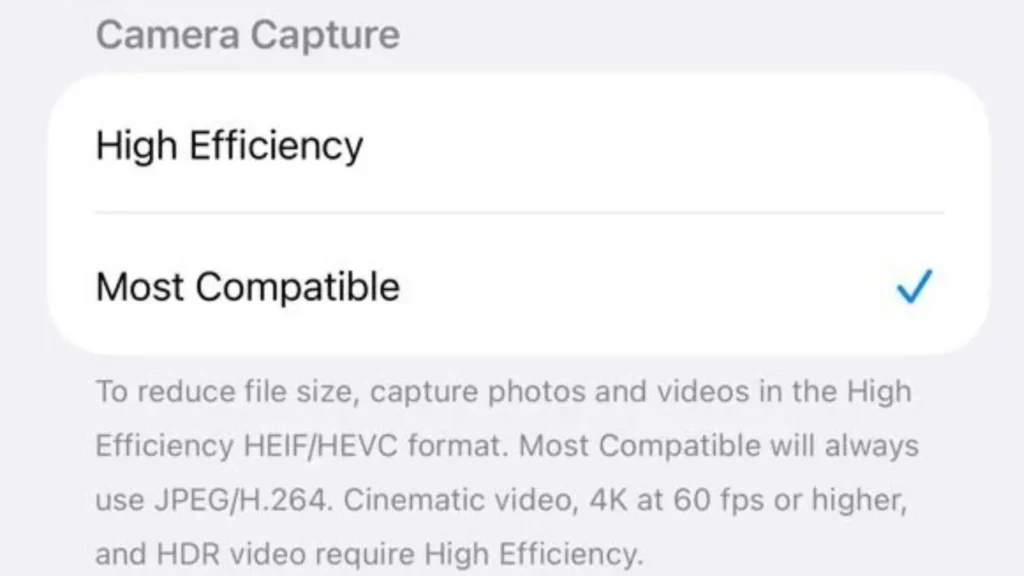
Open this page in Safari and add photos from your library. To stop creating HEIC files in the first place:
- Open Settings, then Camera.
- Tap Formats.
- Choose Most Compatible.
New photos save as JPG. Photos you already took stay as HEIC, and Most Compatible photos take more storage.
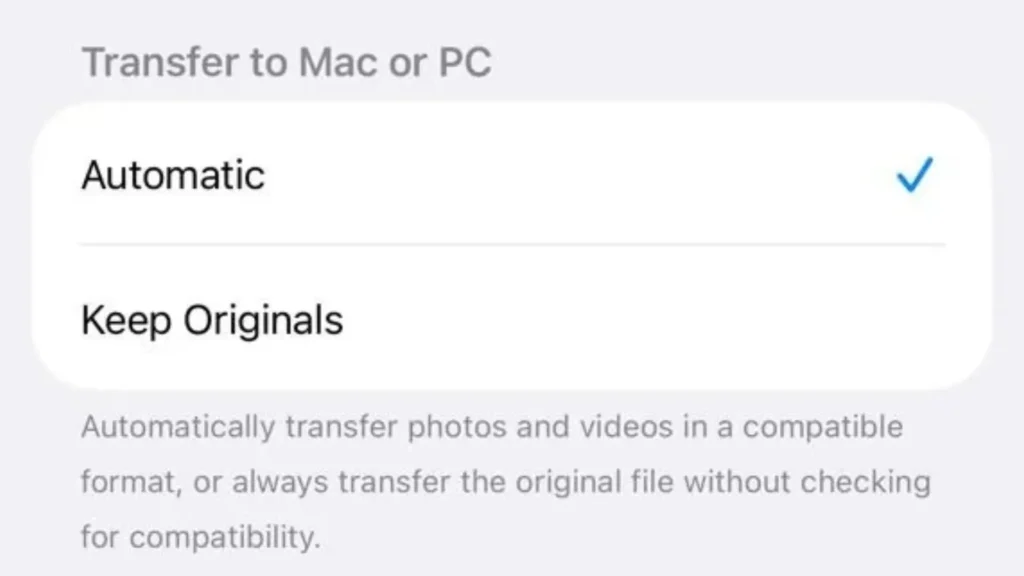
To stop automatic conversion when you transfer to a computer, go to Settings → Photos → Transfer to Mac or PC and choose Keep Originals. Choose Automatic to let the iPhone convert for you.
Windows
HEIC files often will not open without a codec. Use the converter above, or install HEIF Image Extensions from the Microsoft Store.
Some setups also need HEVC Video Extensions. Once installed, open the photo in Paint and use File • Save as • JPEG.
Mac
macOS High Sierra and later open HEIC in Preview and Photos. Open the photo in Preview, choose File → Export, and pick JPEG. For many photos at once, the converter above is faster.
Android
Newer versions of Android open HEIC photos. Older phones may not, so use the converter in your mobile browser.
What Is a HEIC File?
HEIC is the photo format iPhones use by default. It looks like a JPG but often takes up about half the space, which is why Apple chose it to save storage.
Apple started using it in iOS 11. Since then, every iPhone photo taken with the default settings has been a HEIC file. The catch is that many apps, websites, and older computers cannot open it.
HEIC vs JPG: Which One Should You Use?
|
Feature |
HEIC |
JPG |
|---|---|---|
|
File size |
Usually smaller at similar quality |
Larger |
|
Where it opens |
Apple devices, newer Windows and Android |
Almost everywhere |
|
Color depth |
Can store more color information |
8-bit |
|
Transparency |
Supported |
Not supported |
|
Best for |
Saving storage on your phone |
Sharing, uploading, printing |
Keep HEIC to save space on your phone. Use JPG when you share, upload, or print photos.